
Products can come in different styles, including a variety of colors and materials. Swatches give your customers a preview of how the product they browse can be customized when the select from your attributes.
Note: We recommend reviewing attribute creation for added context on building swatches.
| 1 | Select an attribute |
| 2 | Define colors and images for your swatches |
| 3 | Enable swatches |
| 4 | Adjust swatch display size |
Step 1 - Select an attribute
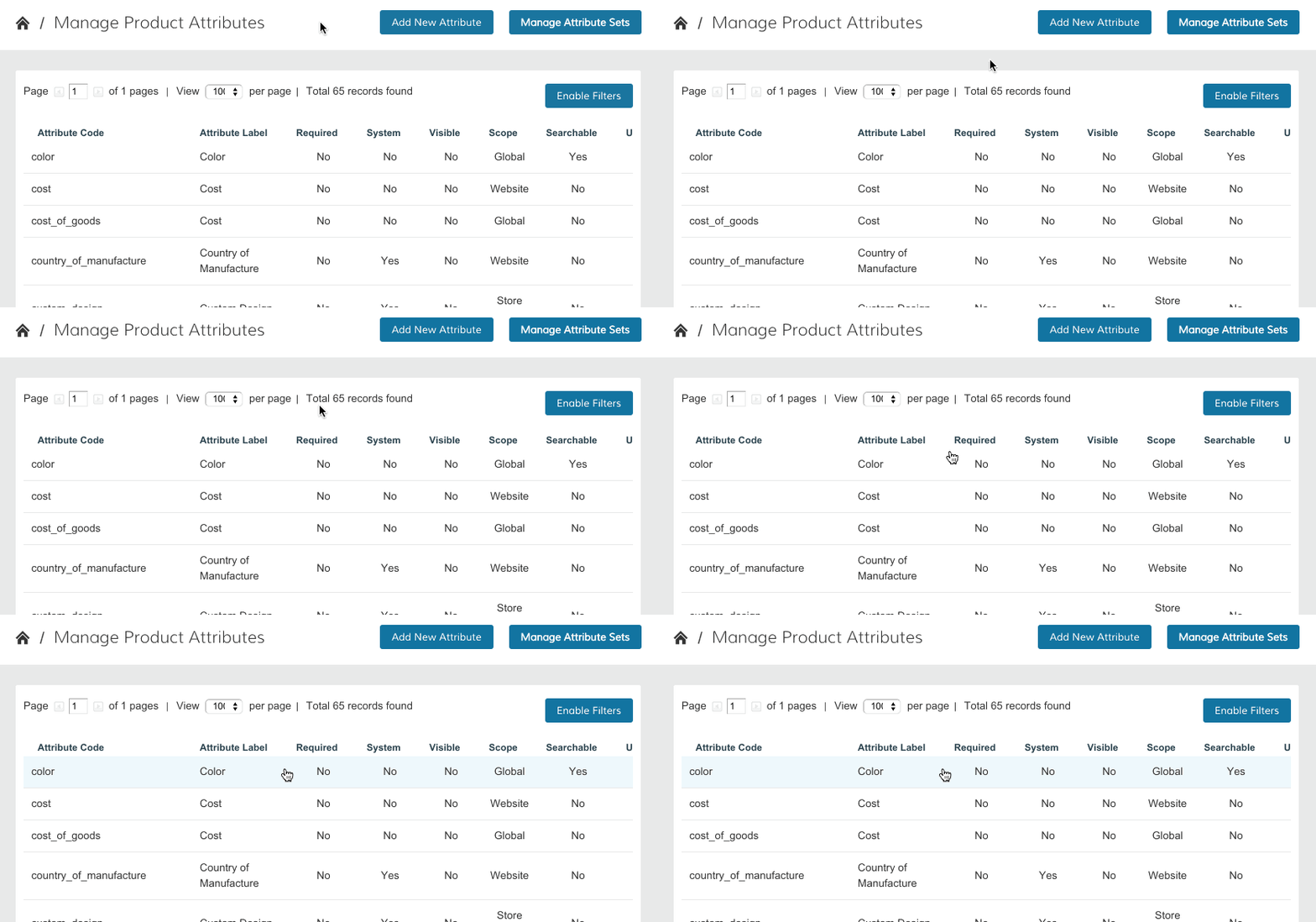
From Products > Attributes, browse your attributes and select the attribute you wish to configure with your swatches.
Then, under Attribute Information, select Manage Label/Options.
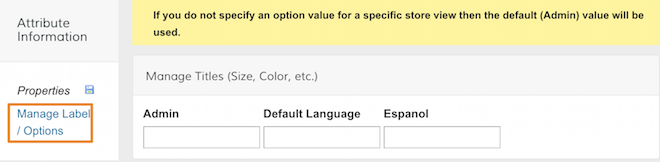
Note: Swatches do not work if your Admin or Language Labels have special characters in their name (e.g. "/" "," "&"). We recommend only using alphanumeric characters (e.g. "abc", "123").
Step 2 - Define colors and images for your swatches
From Manage Options, you can customize your swatch by assigning a color or image. Images are useful for displaying a pattern or fabric option.
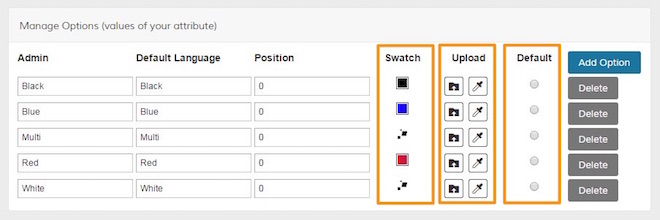
- Swatch - View how your swatch thumbnail appears.
- Upload - Upload an image file from the folder icon. Click the eyedropper to use our color tool.
Note: You can enter in a custom color from our color wheel using the HEX code.
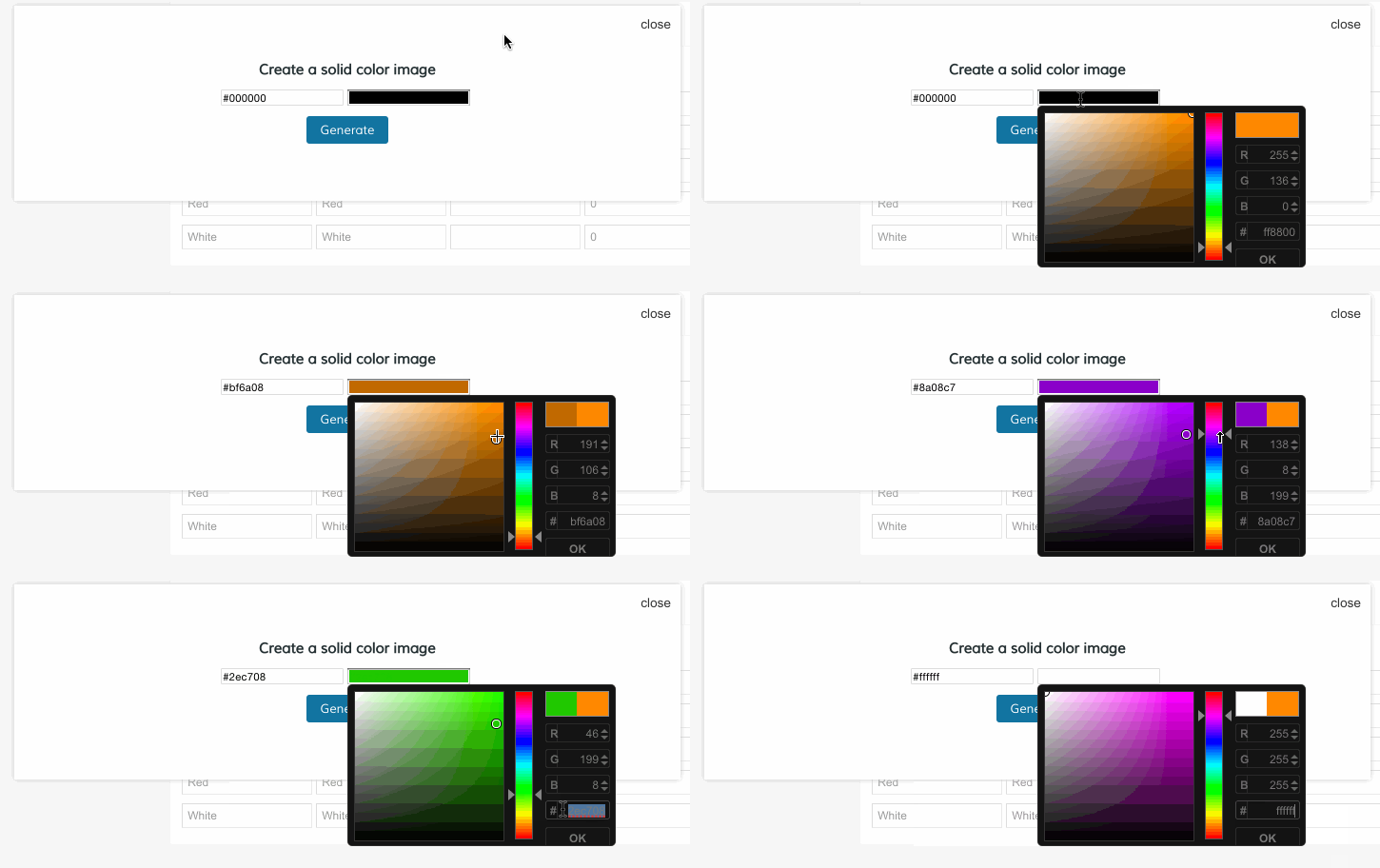
When you finish your configurations, click Save Attribute. Then, refresh your store from Advanced > Refresh Your Store.

Note: We go through the attribute process in detail here.
Note: Configurable products can add a product image for each option. We explain more about configurable products here.
Step 3 - Enable swatches
From Products > Settings, scroll down to the Swatches section.
- Enabled - Select Yes to enable swatches across your store.
- Product Attributes to Show as Swatches in Product Detail - Select the dropdown attributes you want to work with your swatches. Hold Command (Mac) or CTRL (PC) to select multiple options.
- Product Attribute to Use for Swatches in Product Listing - Select an attribute to appear in the product listing.
Step 4 - Adjust swatch display size
From the Swatch Dimensions sections, adjust the size of your swatches when viewed from a variety of areas in your store frontend. You can adjust the pixel width and height of your swatches from the Product Detail Page, Product Listing, and Layered Navigation.
Comments
0 comments
Please sign in to leave a comment.