
The easiest way to make mass changes in your catalog is to upload them via .CSV files. To get started, let's export our existing products.
Export your products from Zoey
To export product information, do the following:
- In your Zoey Control Panel, click Advanced > Import/Export > Export.
- Select “Products” from the Entity Type drop-down menu. The system generates a list of entity attributes that are relevant to your products.
- By default, all attributes are exported to the CSV file. In the Entity Attributes list, select the “Skip” check box for any attributes that you want to exclude from the CSV file.
- By default, all records are exported to the CSV file. Use the controls in the Filter column to limit the records that are exported based on attributes.
Example: Export only products where the Color attribute is Blue - Click Continue on the bottom of the page to export your selected product information to a CSV file.
Open the saved file in your favorite spreadsheet application such as Excel and edit as needed.
Only Updating a few attributes for the Products?
You can erase all columns other than the ones you are using and SKU. All items will need to have a value for the columns you are using. If you are updating 10 products, 6 with inventory amount and 4 with prices, you will need to break them into two separate CSVs or leave the original information in for those not having a change.
Not sure which ones you are using? Check here: CSV Fields - What do they mean?
You can also use this method to add new products as long as they have the required information as below.
Required Product Attributes for New Products:
sku
_attribute_set
_type
name
description
short_description
price
status
visibility
tax_class_id
Once your updated and new products are prepared in the .CSV file, you are ready to upload.
The file that you upload must be in Comma-Separated Values (CSV) format. If you use a Mac, save the CSV as CSV (Windows) file type. Most spreadsheet and database applications can create CSV files. CSV files must have specific characteristics in order to be imported. The total size of uploadable files cannot exceed 110M.
Currently you can not use this method to mass upload or update with images. To learn more about mass updating images, please see this tutorial: Bulk Image Import for Products
Import your file into Zoey
Navigate to the Import screen in your Zoey Control Panel by going to Advanced > Import/Export > Import
- Set Entity Type to Products
- Set Import Behavior to Append Complex Data
*You should only use append when updating information. If you are only changing Custom Options you can use Replace Existing Complex Data as Append would add duplicate custom options. - Click on Choose File to browse your computer for the CSV
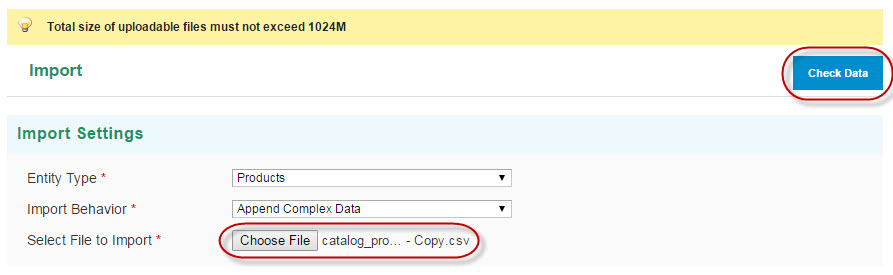
Once you see the name of your file appear next to Choose File, click Check Data to begin Import!
If you are given errors, please check your CSV file on the line specified. Common issues are "type" being "giftcard" which is not currently supported. Upload your newly saved file and Check Data again until you receive no errors as shown below.
Click the IMPORT button
Your new and updated items will be in your catalog! Remember to go to Advanced > Store Refresh to show the changes on the front end!
Comments
0 comments
Please sign in to leave a comment.