
Free samples can be an excellent promotional tool for your product. Use free samples to allow customers to try your product before they make a purchase.
| 1 | Visit Products |
| 2 | Configure a free sample |
| 3 | Save and refresh |
Step 1 - Visit Products
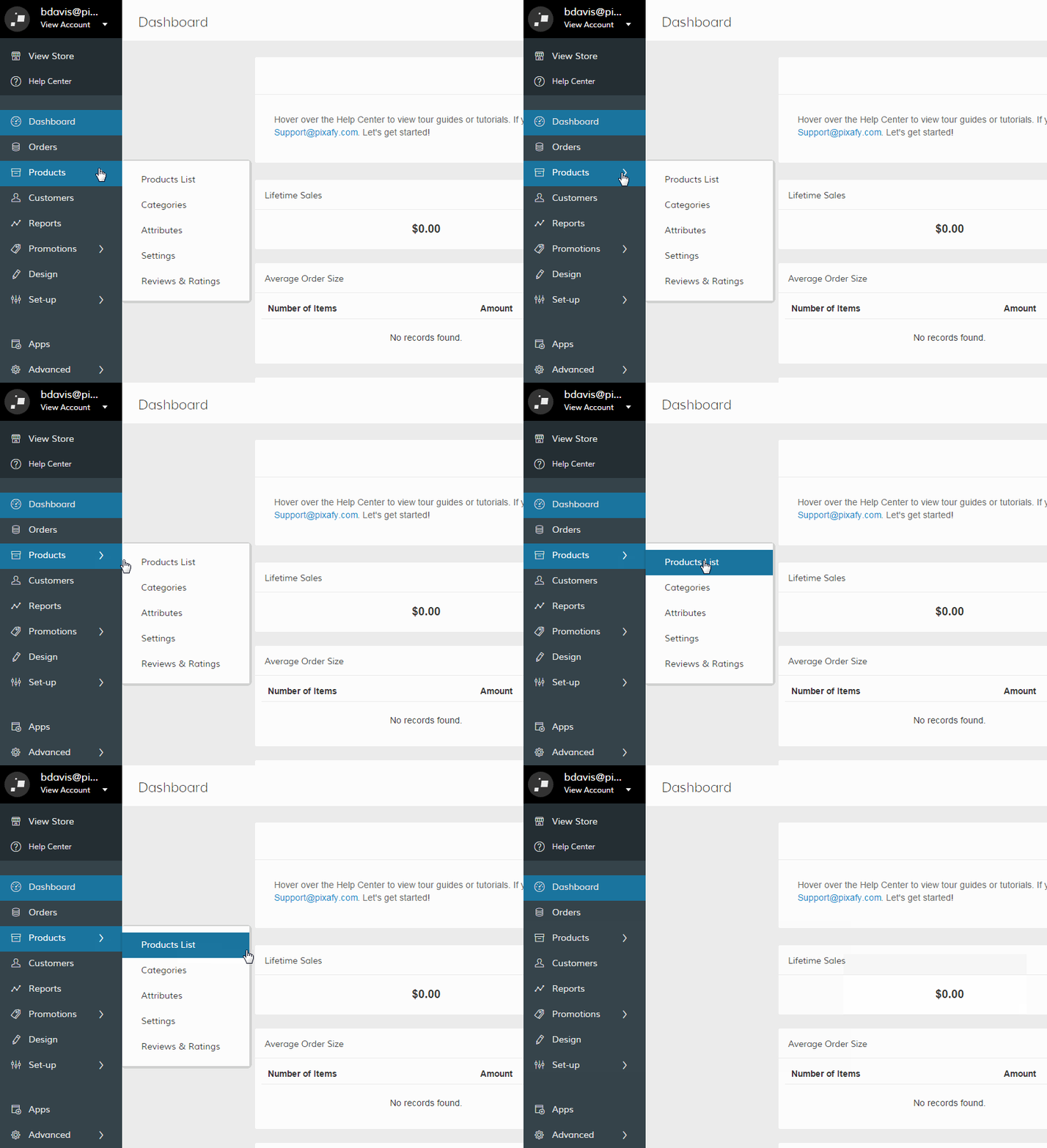
In your Control Panel, hover over Products, and select Products List.
Step 2 - Configure a free sample
In your product catalog, you can set up a free product in a couple of ways.
Option 1 - Configurable product
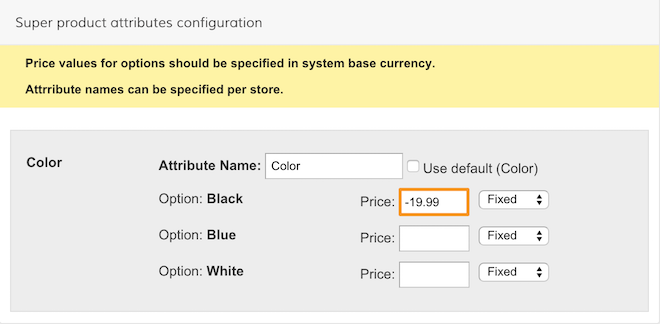
When editing a Configurable Product, visit Related Products. Then, under Super product attributes configuration, enter a negative price value equal to your Configurable Product's price next to the option you wish to offer as a free sample.
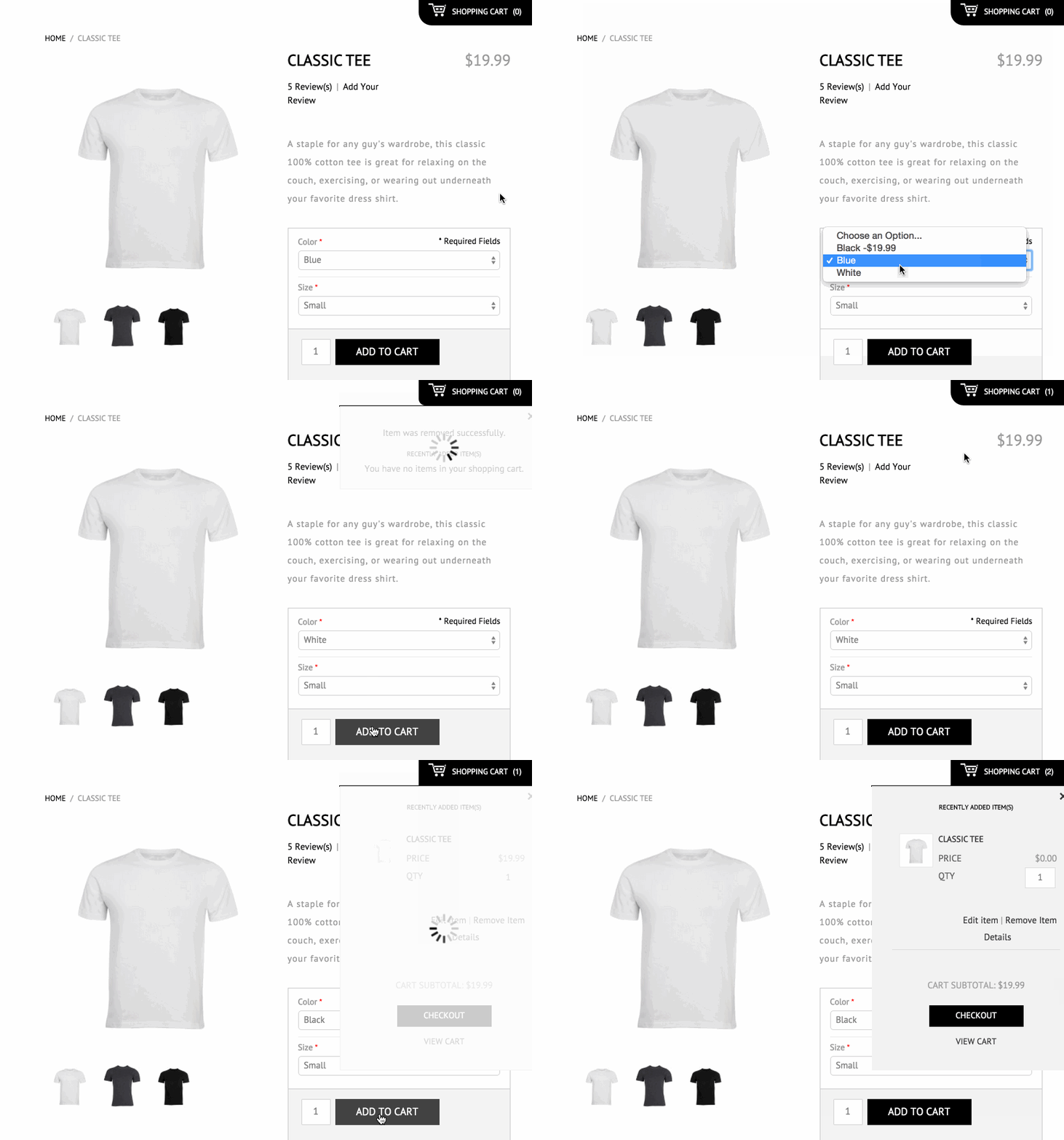
This will display your free sample option as a negative price value:
Note: We explain how to create configurable products here.
Option 2 - Custom option
Alternatively, you can set a custom option that allows the customer to select a free sample. In a Simple Product, visit the Custom Options setting in your Navigation.
In your new option, enter a word or phrase in the Title fields that indicates your option as a sample, and set the Input Type to Checkbox.
Last, enter a negative value as your price. The free sample negative value must match the default price.
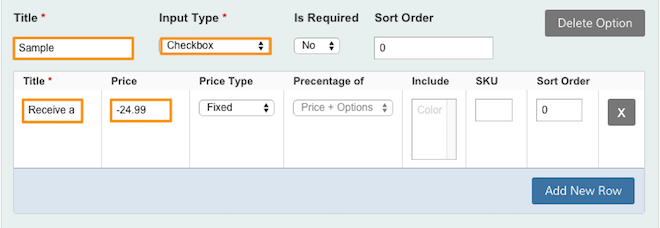
Your customers can select your sample option and receive the free sample.
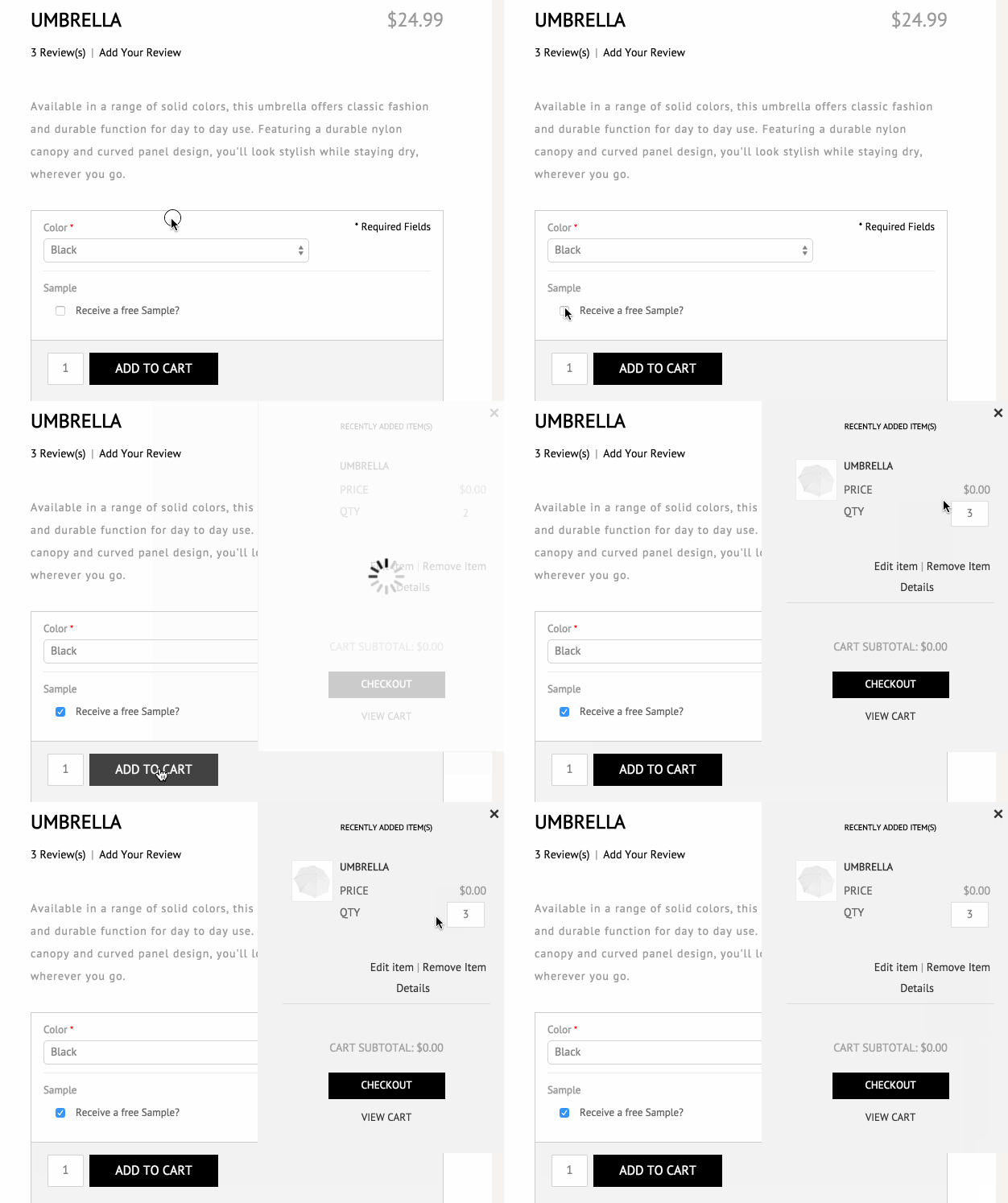
Note: We explain how to create custom options here.
Step 3 - Save and refresh
After creating your free sample, click Save in the top right corner. Then, in your Control Panel, hover your cursor over Advanced and select Refresh.
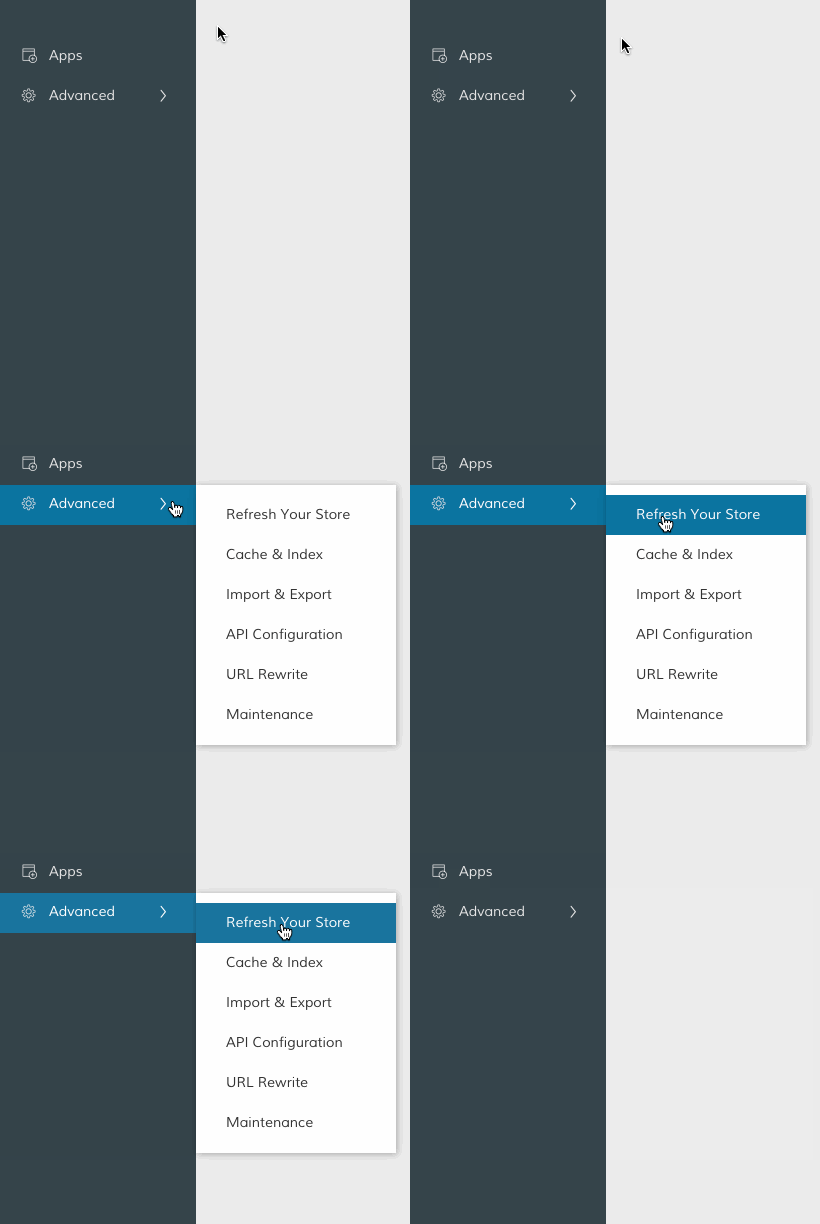
You did it! Refreshing allows you to view your free samples in frontend of your store.
Comments
0 comments
Please sign in to leave a comment.